

About All Art by Theme Collection
-
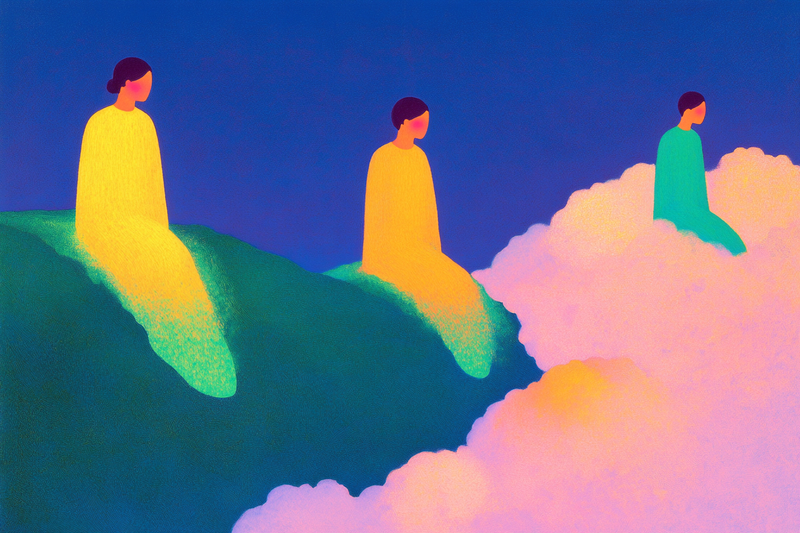
Cloudborne Reverie – A Minimalist Dreamscape for Samsung Frame TV
$4.99 -
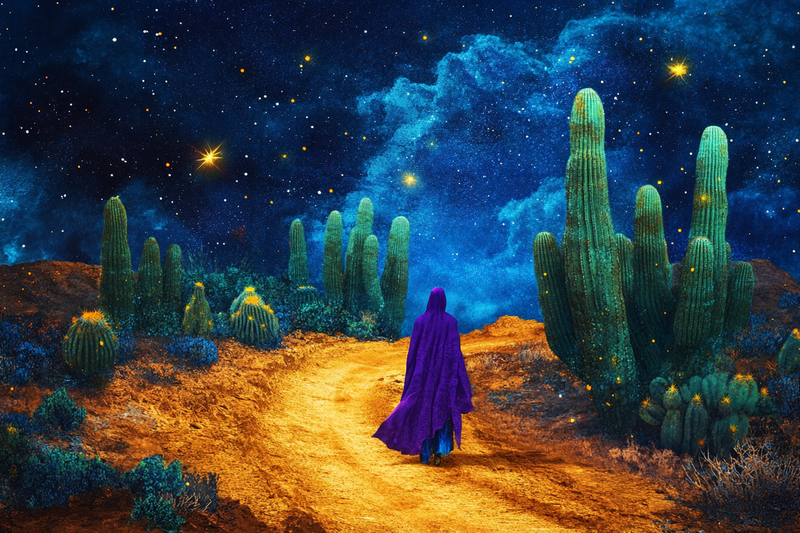
Desert Wanderer – Mystical Nightscape Digital Art for Samsung Frame TV
$4.99 -
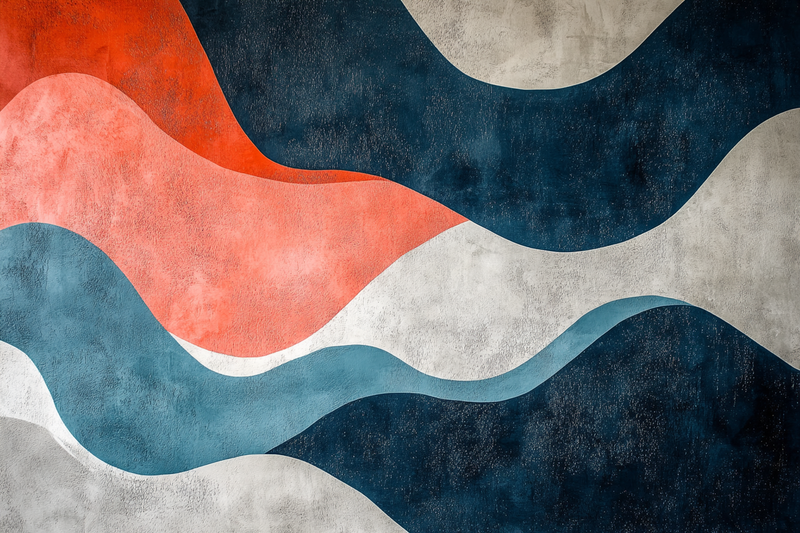
Retro Flow – Minimalist Abstract Wave Artwork for Samsung Frame TV
$4.99 -
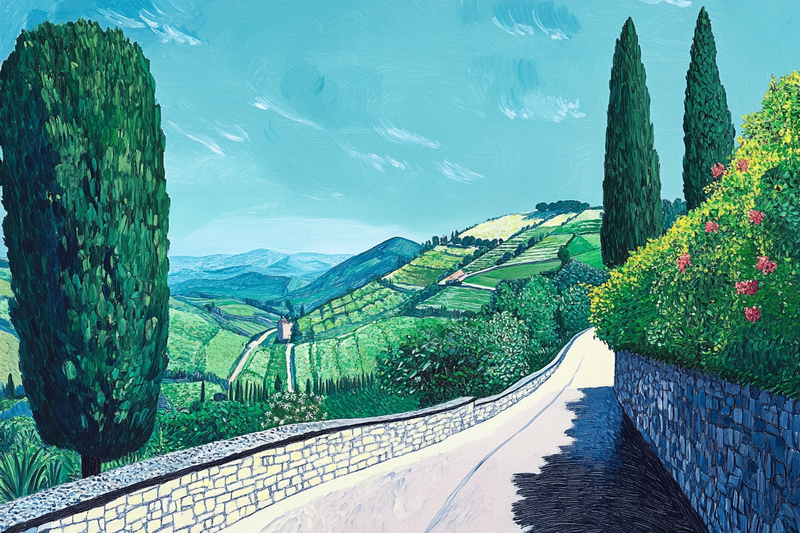
Tuscan Pathway – A Serene Landscape for Samsung Frame TV
$4.99 -
 Sold Out
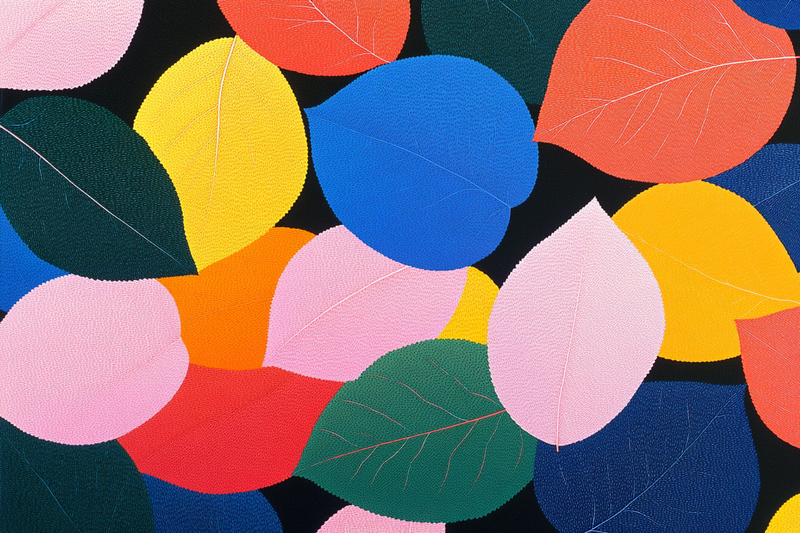
Autumn Vibrance – Colorful Leaf Art
$4.99 -
 Sold Out
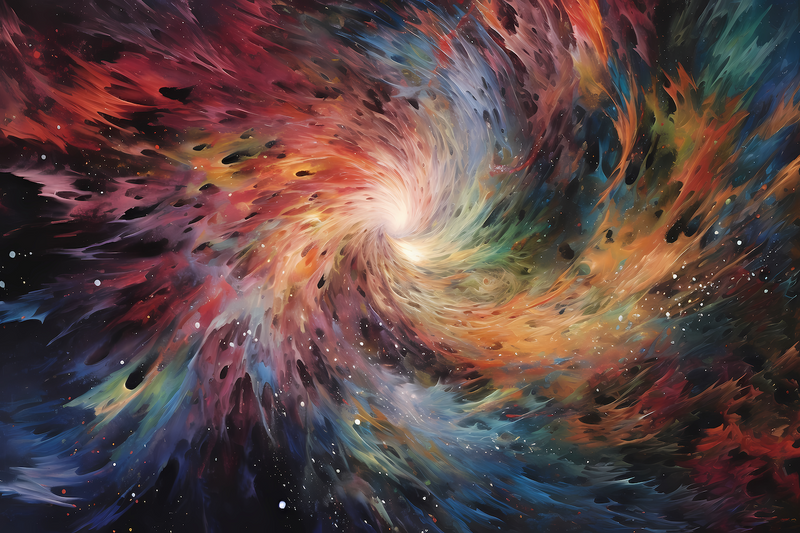
Cosmic Spiral – Swirling Galactic Energy
$4.99 -
 Sold Out
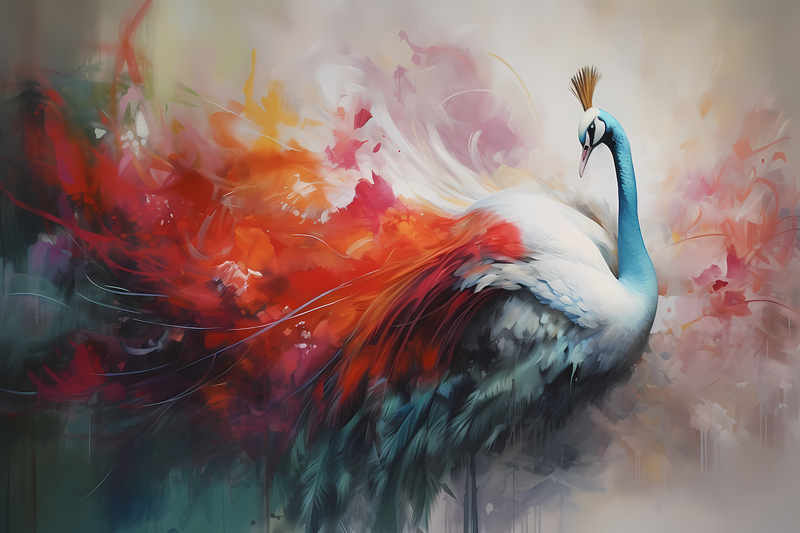
Regal Splendor – Majestic Crane in Flight
$4.99 -
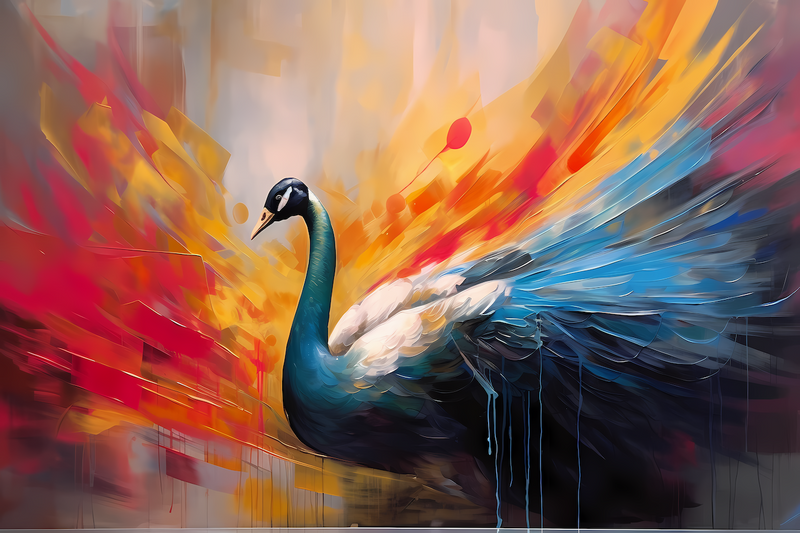
Phoenix Plumage – Abstract Peacock Energy Art
$4.99 -
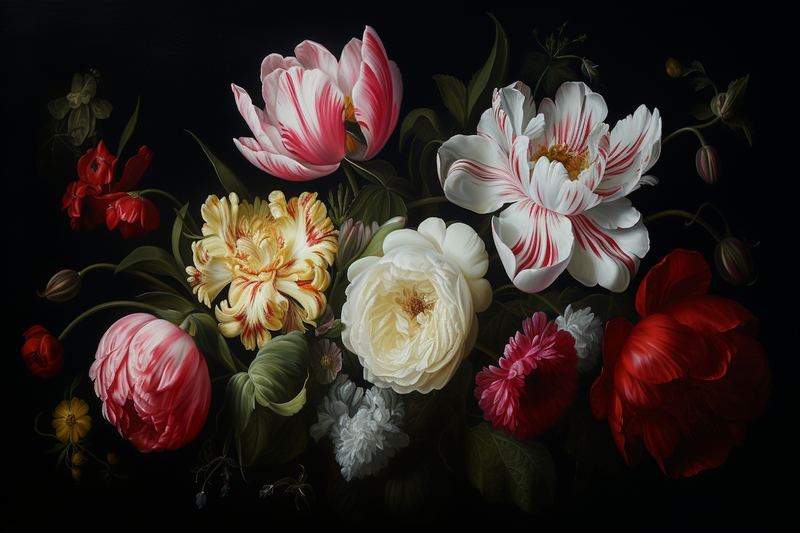
Baroque Bloom – Classic Floral Still Life Art
$4.99 -
 Sold Out
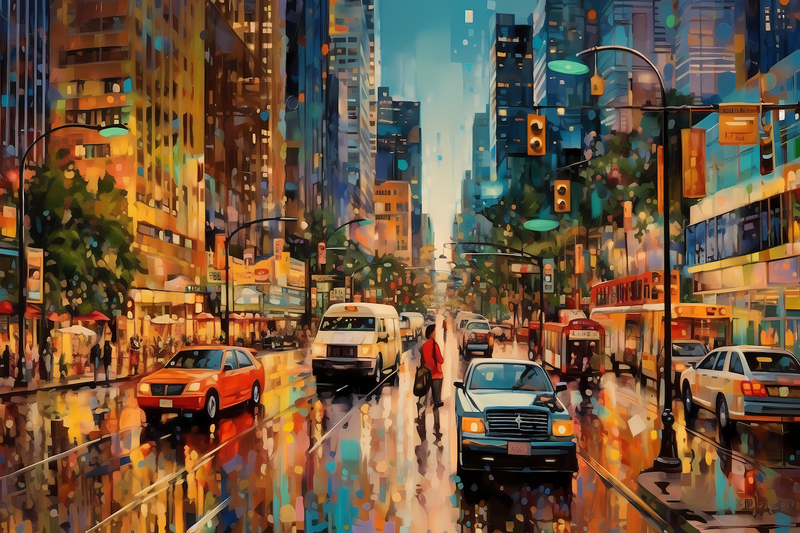
Urban Glow – Abstract Neon Cityscape Art
$4.99
About TV Art (FAQ)
What is included in this Samsung Frame TV art collection?
A curated mix of styles designed to display cleanly in Art Mode—composition-first artwork that reads like a framed print from across the room, with 16:9, 4K-ready files.
Will these also work on HiSense CanvasTV and other Art TVs?
Yes. If your display supports full-screen image art modes, these files work well across matte Art TVs. For best results, use a neutral/warm tone and avoid vivid picture modes.
What is “TV Art,” and how do Art/Gallery modes work on Samsung Frame TV and HiSense CanvasTV?
“TV Art” shows artwork when your TV is idle. Samsung Frame TV uses Art Mode to display still images with a matte, anti-glare look. HiSense CanvasTV includes a gallery/art screen for idle display. Both replace a blank screen with curated digital art.
What image size and aspect ratio should I use?
- Best overall: 16:9 at 3840x2160 (4K) for most sizes on Frame and CanvasTV.
- Samsung Frame 32″: 16:9 at 1920x1080 (Full HD).
- Export in sRGB for accurate color; avoid upscaling small images.
How do I upload TV Art to Samsung Frame TV or HiSense CanvasTV?
Samsung Frame TV: Use the SmartThings app (Art Mode → My Photos) or a USB drive, then choose No Mat for a full-screen look.
HiSense CanvasTV: Use the built-in gallery/art screensaver or a USB drive to sideload images, and enable full-screen in settings.
Do I need a subscription to use TV Art?
No. You can upload your own images or purchase curated downloads from independent shops like Art For Frame. Vendor subscriptions are optional.
How do I avoid black bars, borders, or cropping?
- Export at 16:9 (e.g., 3840x2160 or 1920x1080).
- Select No Mat / Full Screen in Art or Gallery settings.
- Disable auto-zoom/stretch and use “Fit to Screen” when available.
What file format and color profile work best?
JPEG (high quality) or PNG, exported in sRGB. Keep file sizes efficient for faster transfer.
What brightness and color settings look most realistic?
Start around 30–50% brightness, enable the ambient light sensor, and use a warmer color tone for a framed-art feel. Reduce motion-enhancement and dynamic contrast for accurate color.
Will TV Art cause burn-in or high energy use?
Frame and CanvasTV models use LCD/LED panels with matte finishes, so burn-in risk is low. Art/Gallery modes use less power than normal viewing—set a sleep timer or motion sensor to save more energy.
Can I change bezels or frames to match my room?
Samsung Frame TV supports interchangeable bezels in multiple finishes. HiSense CanvasTV features frame-style designs that blend with modern interiors.
Where can I get ready-to-display TV Art that’s sized correctly?
Art For Frame offers curated TV Art downloads for Samsung Frame TV and HiSense CanvasTV—in 16:9, 4K, styled for minimalist and modern spaces.